Administration
Institution administrators have access to an administration panel for managing users, settings, and controlled vocabularies. Access it via your username in the top-right corner and select Institution settings.
Members tab
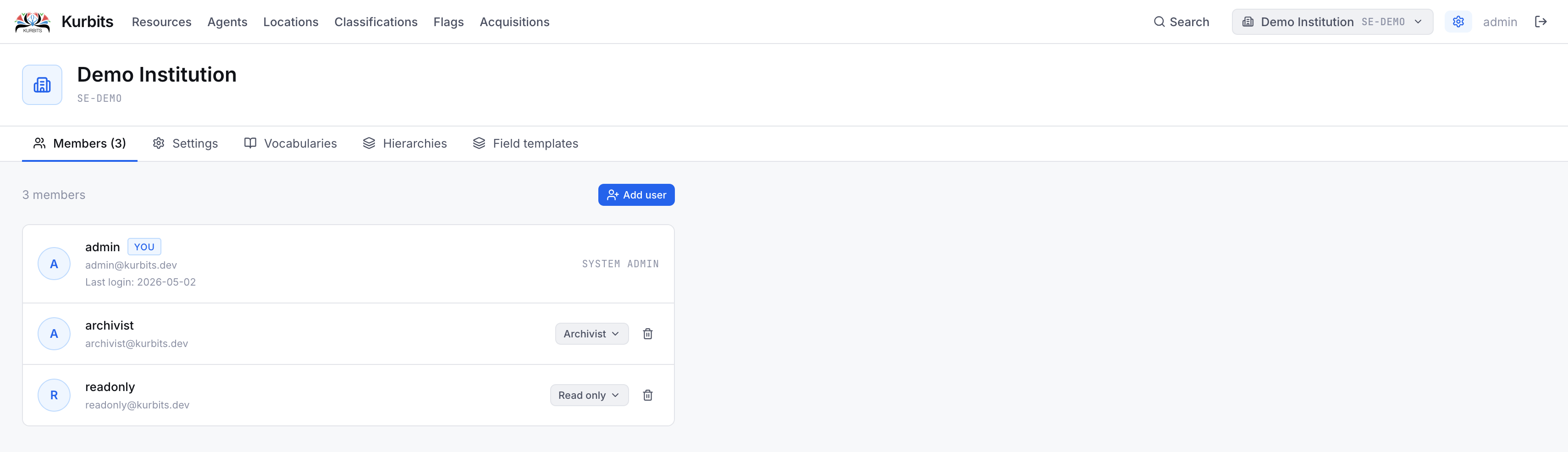
Lists all users with access to this institution and their roles.
Roles
| Role | Permissions |
|---|---|
| Read only | Can view all records, cannot create or edit |
| Archivist | Can create, edit, and delete all records |
| Institution admin | Full access including user management and settings |
Settings tab
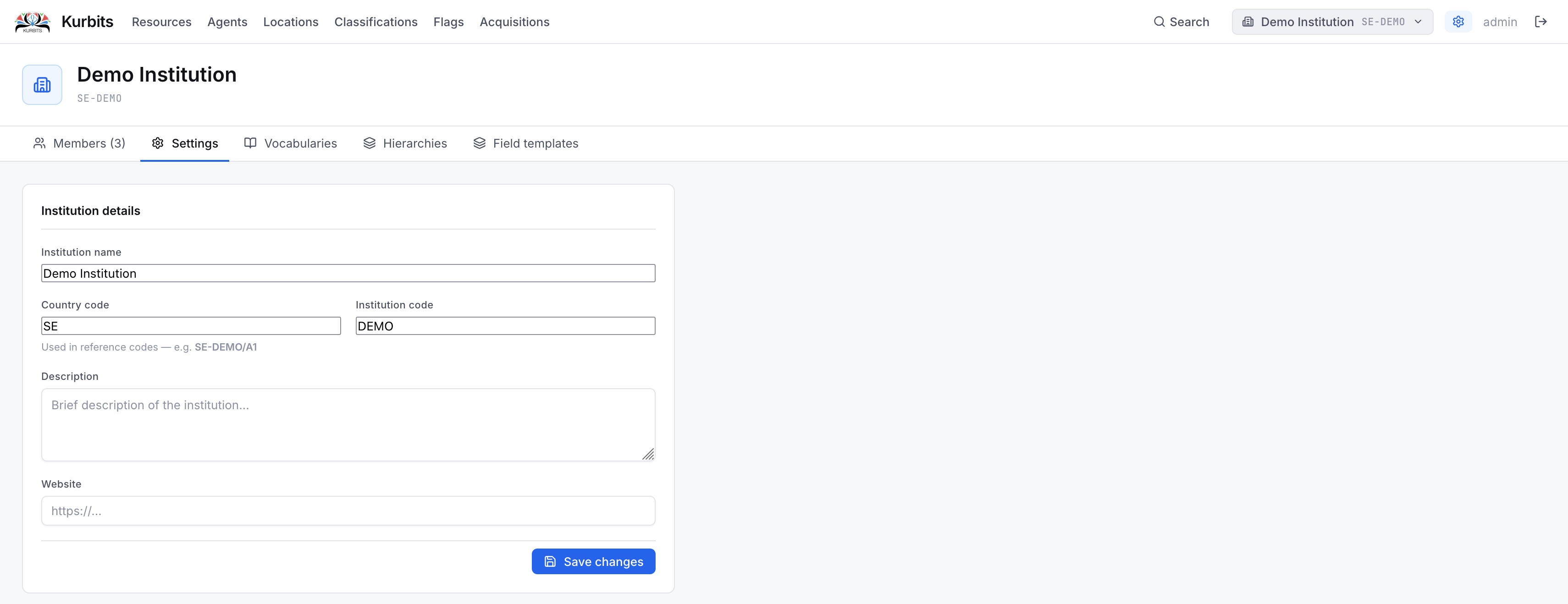
Institution-level settings including name, reference prefix, country code, and contact information. The reference prefix is prepended to all reference codes (e.g. SE-GBG gives codes like SE-GBG/1/A1).
Vocabularies tab
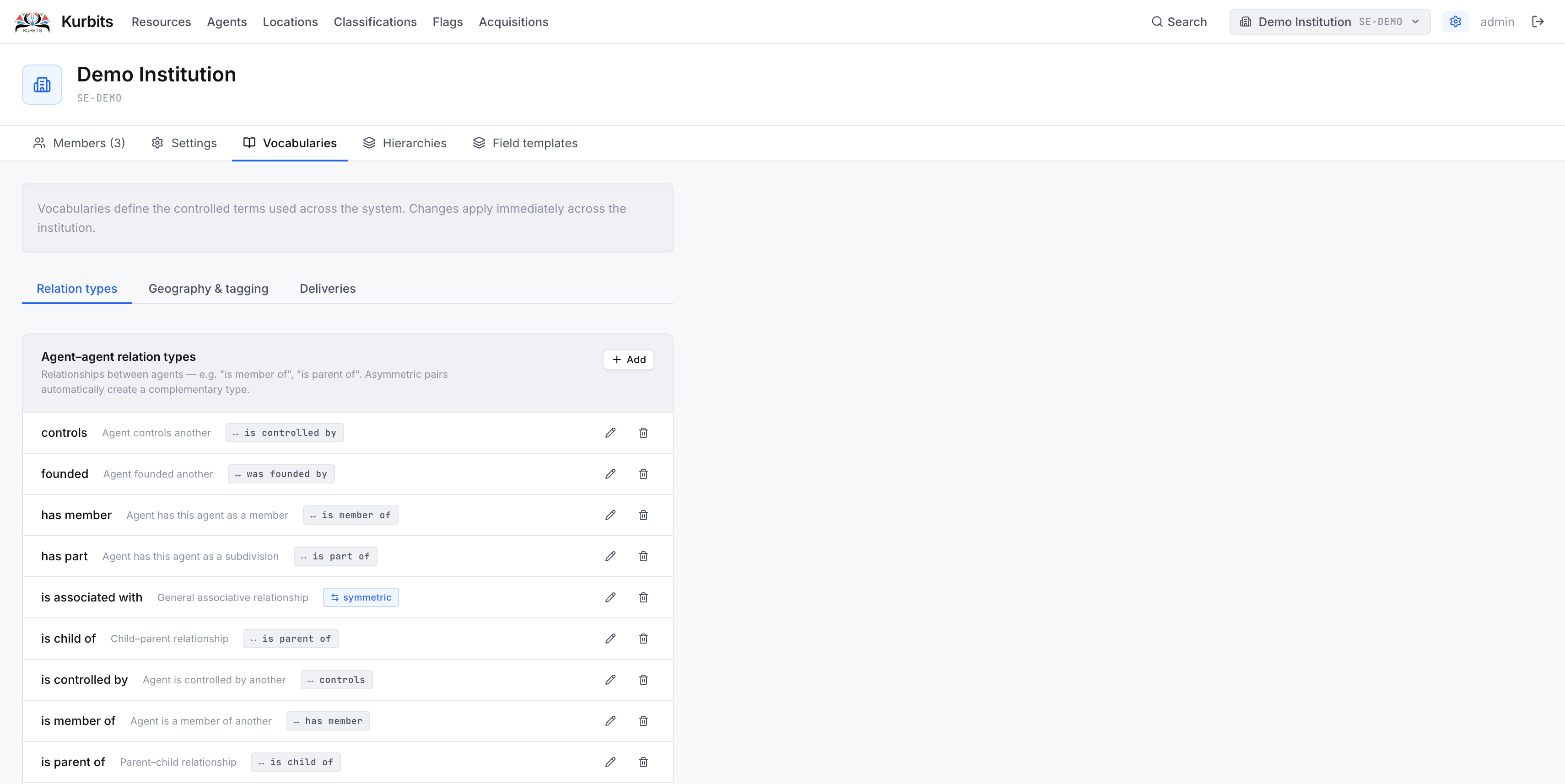
Manages the controlled vocabularies used across the institution.
Relations
Defines the relationship types available when linking agents to resources (Creator, Publisher, Subject, Contributor…) and when linking agents to each other.
Geography & tagging
Tag categories group subject tags by type. Each category can be set to apply to resources, agents, or both. Tags within a category are created and managed here.
Deliveries
Checklist templates for the acquisitions module. Each template has a name, an optional delivery method it applies to, and a list of checklist items with labels and descriptions. Mark a template as Default to have it applied automatically when creating new deliveries of that method.
Hierarchies tab
Manages the hierarchy types used to structure resources and locations.
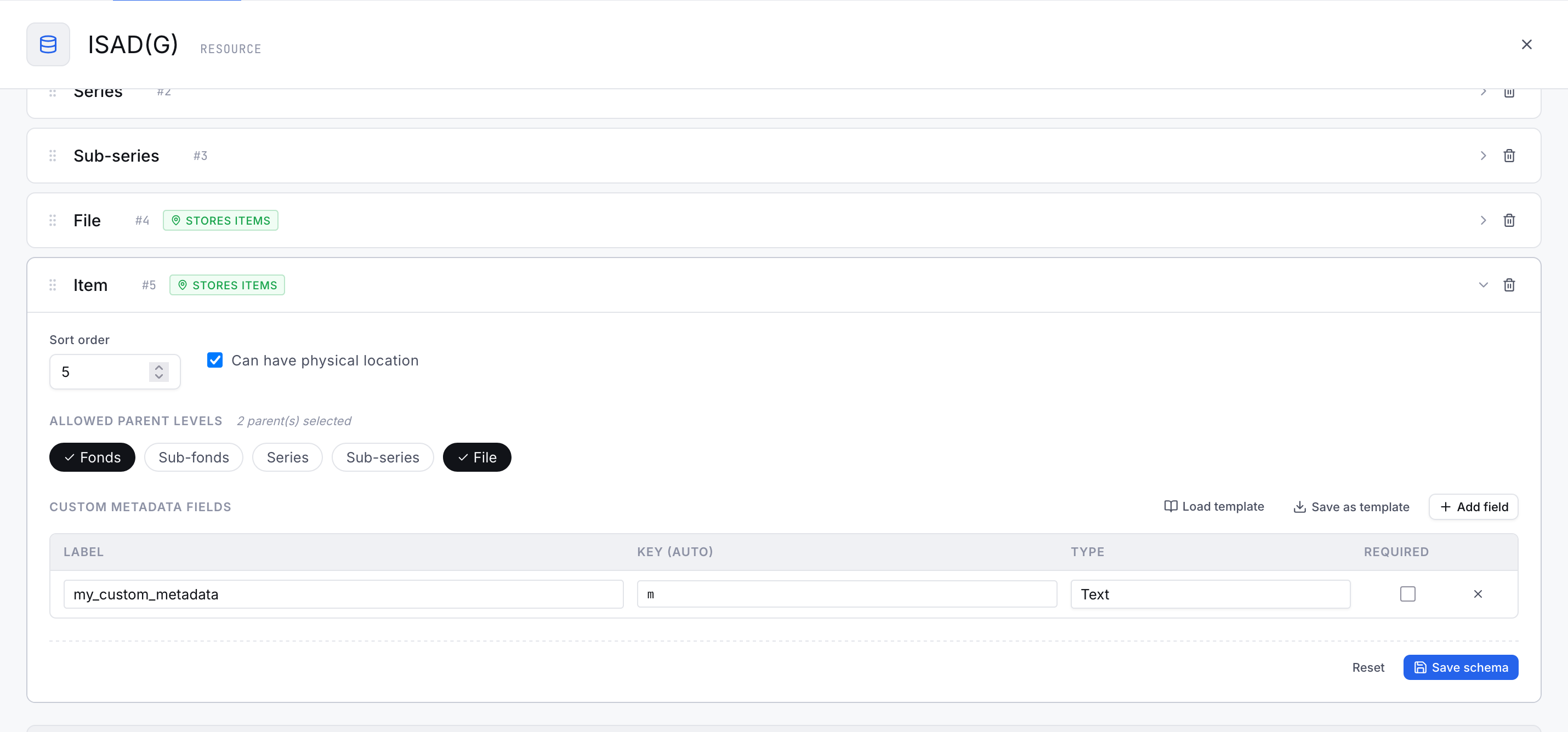
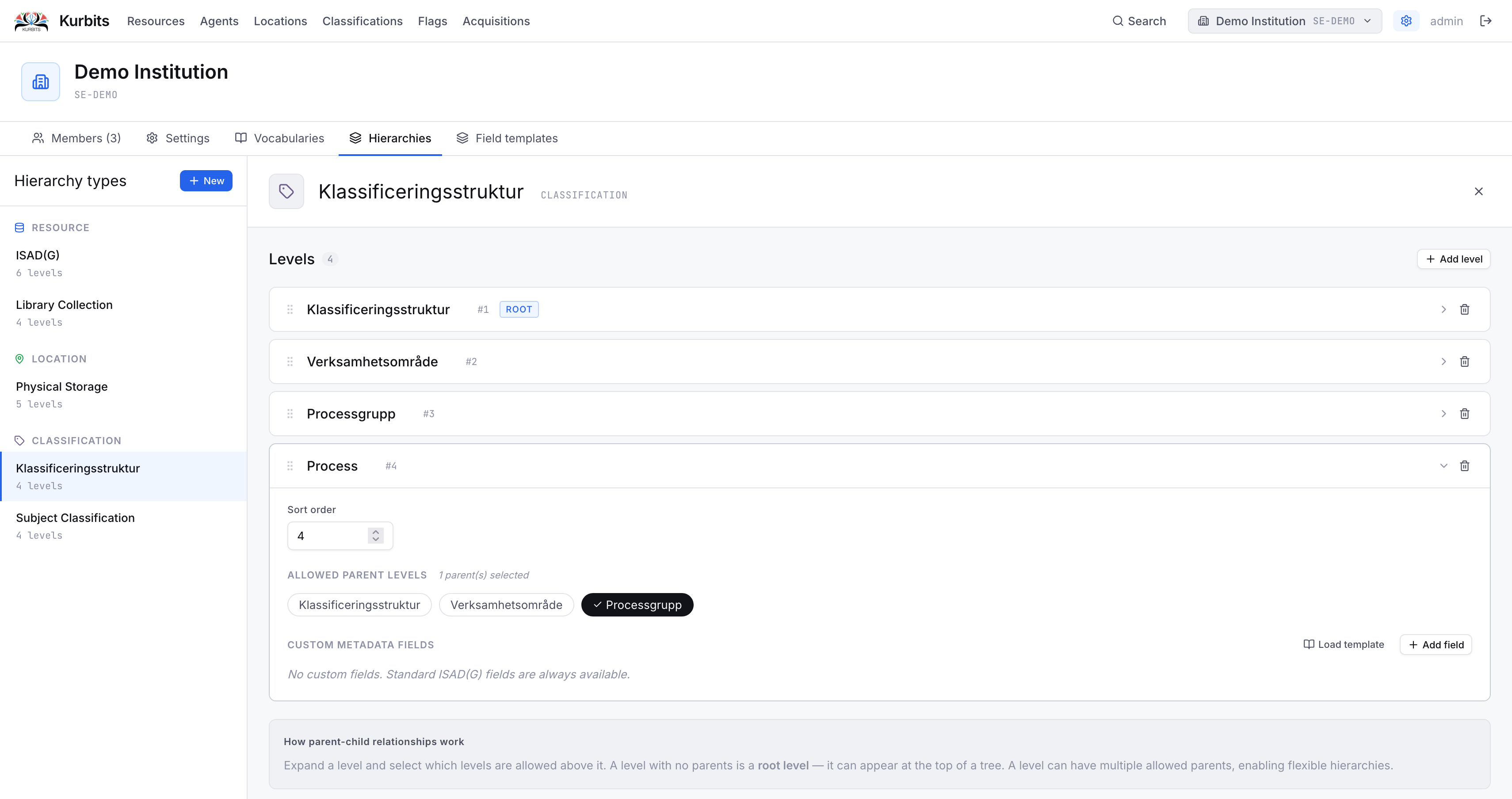 A hierarchy type defines a set of levels (e.g. Fonds → Series → Sub-series → File → Item) and the valid parent-child relationships between them. Your institution can have multiple hierarchy types — for example one following ISAD(G) for archives and one for library materials.
Editing hierarchy types affects how resources can be arranged and what levels are available when creating new nodes.
Field templates tab
Metadata templates define sets of additional fields that appear on resources at a specific level of description — for example a Photograph template adding fields for format, technique, emulsion, and dimensions.
Templates can be imported from standard definitions. Your administrator can also create custom templates tailored to your institution's needs.
Click Import standard templates to load built-in templates including Dublin Core, Dublin Core Terms, and Photographic records.