Getting started
Logging in
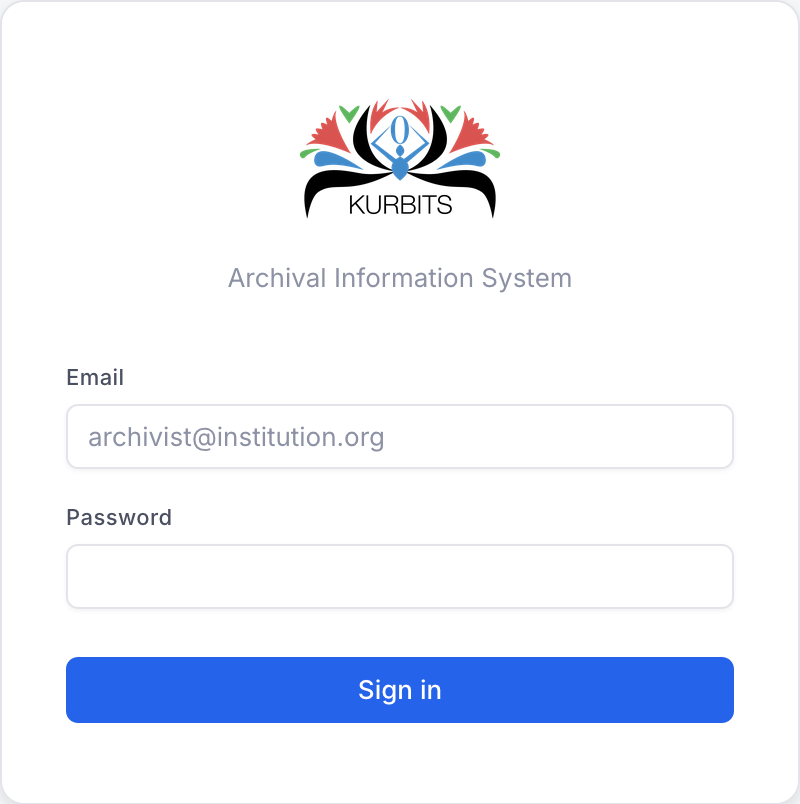
Navigate to your institution's Kurbits URL and enter your email address and password. Kurbits uses session-based authentication — you will remain logged in until you log out or the session expires.
The navigation bar
After logging in you will see the top navigation bar with the main sections of the system.

| Section | Purpose |
|---|---|
| Resources | Describe and browse your archival holdings |
| Agents | Manage authority records for people, organisations, families |
| Locations | Track where physical objects are stored |
| Location overview | See where everything is at a glance |
| Classifications | Manage subject and record type schemes |
| Flags | Review items that need attention |
| Acquisitions | Manage agreements, deliveries, and accessions |
General layout
Most pages follow the same two-panel layout: a tree or list on the left for navigation, and a detail panel on the right showing the selected record.
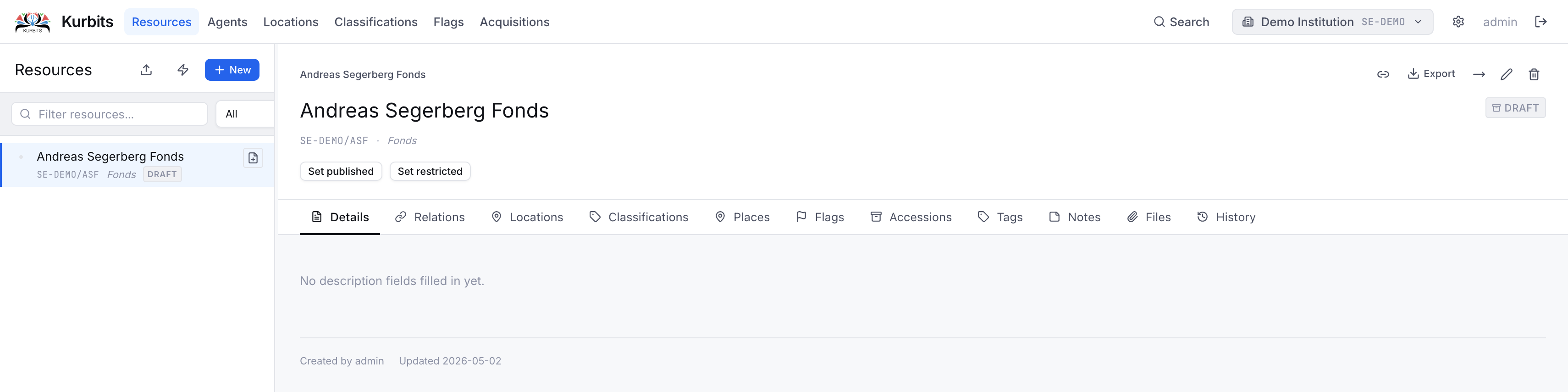
Within the detail panel, information is organised into tabs — for example Details, Relations, Notes, Files. Click a tab label to switch between them.
Saving changes
Most forms save with a dedicated Save button. The system does not auto-save. Unsaved changes will be lost if you navigate away.
Your institution
Kurbits supports multiple institutions. If you belong to more than one, a selector will appear allowing you to switch context. All records are scoped to your active institution.