Labels
Kurbits prints box and shelf labels for your resources, and lets you design your own label layouts with a drag-and-drop editor.
Printing labels
Select one or more resources and use the Print labels button. You can choose:
- A design template (if any have been created — see below), or the built-in layout.
- A label format — the physical label size and how many fit on an A4 sheet. Formats include standard 90×45 archive labels, Avery sheets, portrait archive-box labels, and tall spine labels.
- The number of copies.
A PDF is generated for printing on label sheets.
Designing your own labels
Open Administration → Label designer to create reusable label templates.
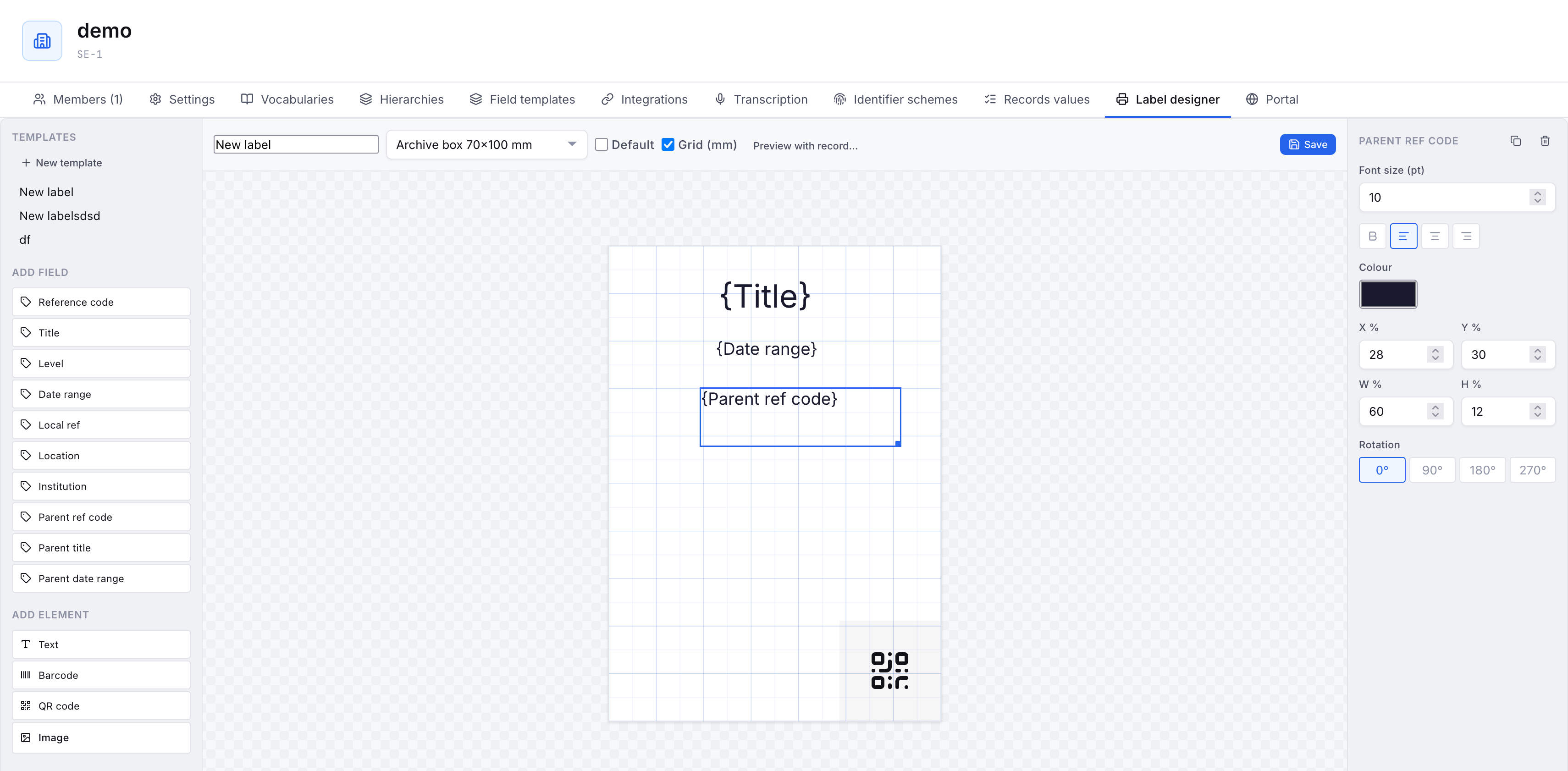
The designer has three parts: a palette on the left, the label canvas in the middle, and a properties panel on the right when an element is selected.
Adding elements
From the palette, add:
- Fields — values pulled from each resource at print time: reference code, title, level, date range, local ref, location, institution, and the parent's reference code, title, and date range.
- Text — fixed text that appears on every label.
- Barcode and QR code — encoding the reference code (or local ref).
- Image — a logo or other picture you upload.
Positioning
Drag an element to move it; drag the corner handle to resize. The properties panel gives exact position and size in percent, plus:
- Font size, bold, alignment, and colour for text and fields.
- Rotation in 90° steps — useful for text running vertically along a spine label.
Turn on the Grid (mm) toggle to show an accurate millimetre grid while you work.
Previewing with real data
By default, fields show generic placeholders like {Reference code}. Click Preview with record… and pick a resource to fill the label with that record's real values, so you can judge how actual titles and codes fit. This is preview only — it does not change the template.
Saving
Give the template a name, pick the label format it is designed for, and click Save. Mark one as Default to have it pre-selected when printing. Saved templates appear in the Design template dropdown on the Print labels dialog.
What you see in the designer is what prints — the layout is measured as fractions of the label, so the on-screen preview and the printed PDF match.